APX (Abacus Payment Exchange) > E-mail Settings
 E-mail Settings

Learn by Video – Expanded Email
Email Notifications allow for greater control over how internal firm members are notified about APX transactions. Enable or disable specific notifications and adjust distribution lists so that the right team members are informed. Transactions could include failed payments, refunds, voids, recurring payments and more.
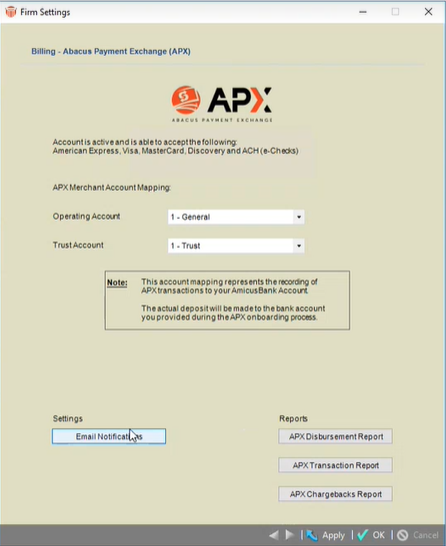
- The following dialog displays for firm members that have opted into sending Email Notifications after they click on APX under the Billing section in Firm Settings.
-
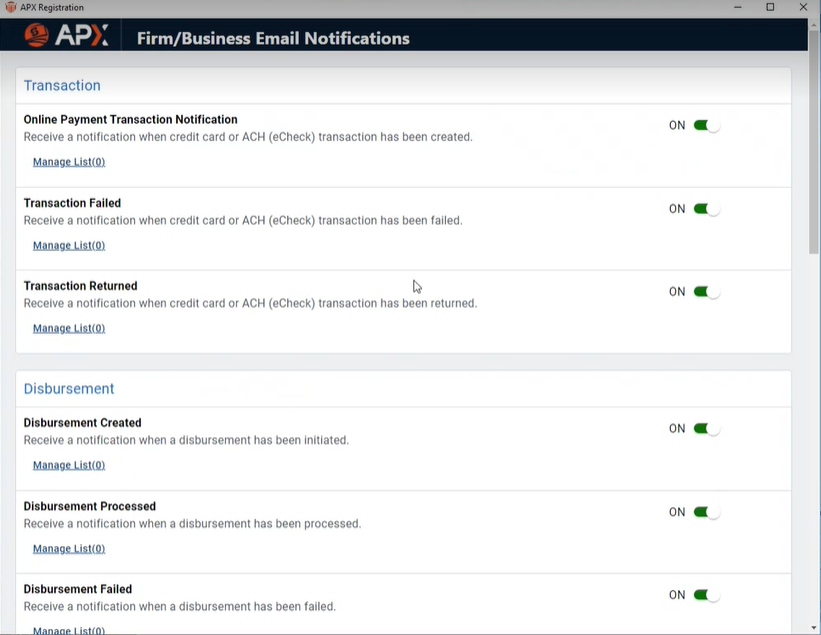
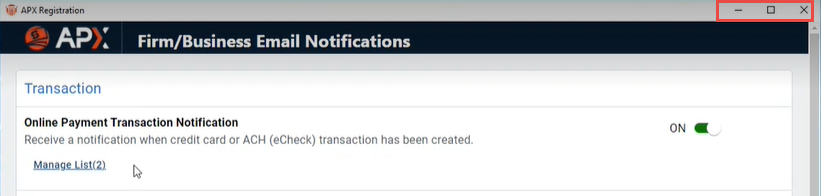
A Firm/Business Email Notifications window displays with a scroll bar on the right side so you can easily scroll down to the notification you want to send.
-
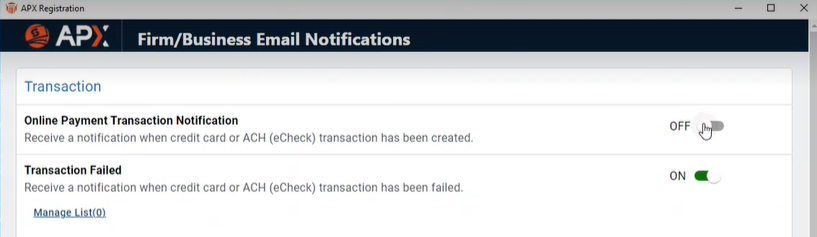
By default the various email notifications are enabled. Slide the toggle switch from ON to OFF to change this setting.
-
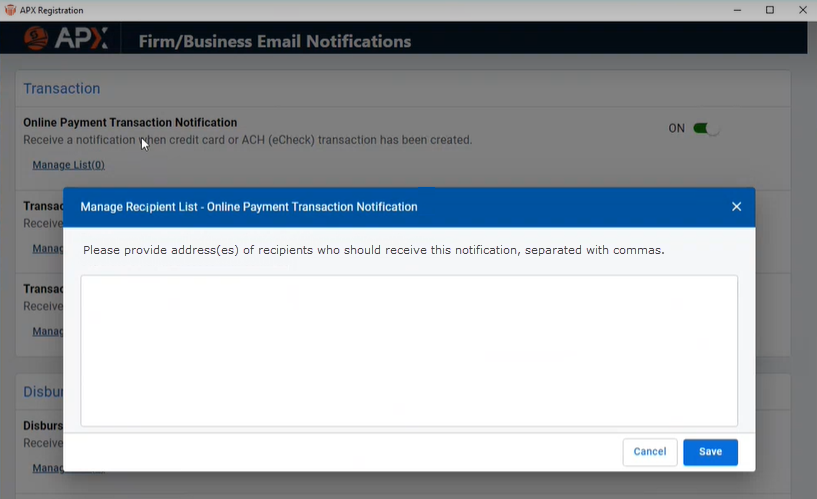
Click Manage List to display the Manage Recipient List - Online Payment Transaction Notification window. This is where you add in email address(es) for the recipients of the notification separated by commas. Click Save when you are done.
-
The number of recipients displays beside Manage List. You can add your own email so that you get notified as well.
-
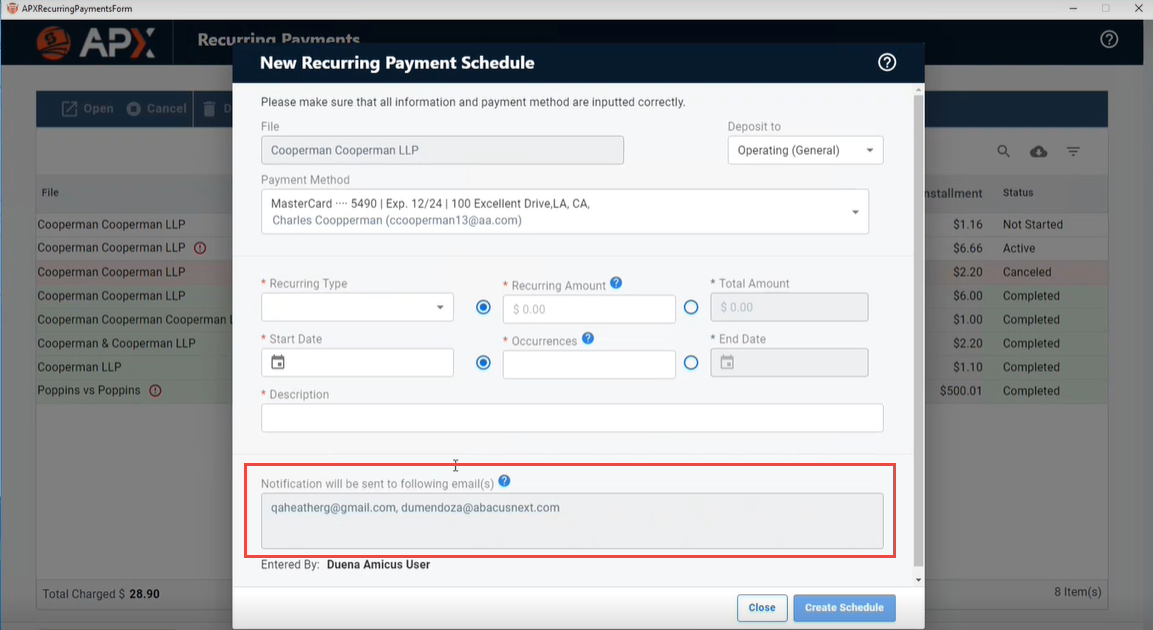
You can Maxiimize and Minimize the window using the controls at the top. Closing the window automatically saves you changes. The emaill address(es) you entered in the Manage Recipient List window appear in the Notification will be sent to following email(s) field in an item you create on the Firm/Business Email Notifications list, for example a New Recurring Payment Schedule.
-
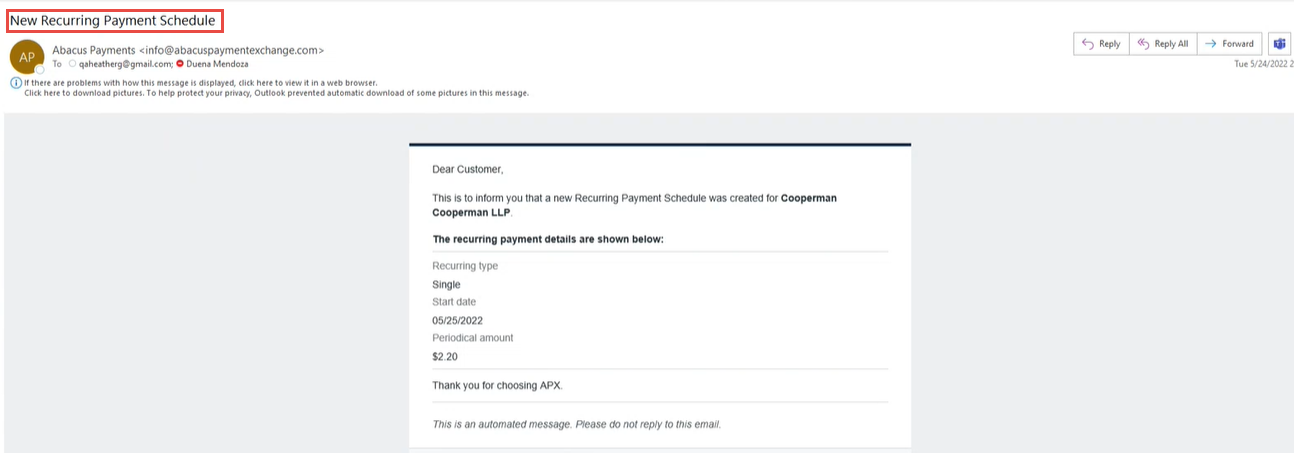
The recipients will receive an email notification with the type of notification displayed in the subject line. In this case New Recurring Payment Schedule.
-
If the Recurring Payment is deleted from the schedule the recipients will receive another notification.
Related Topics
