Customizing Billing > Administering the Database > Recalculate Balances utility
 Recalculate Balances utility
This utility refreshes the display balances in Client and File Account Overviews and Indexes. These balances may need updating if new transactions or changes to transactions fail to update them under certain circumstances, such as after using the mass time entry change tool.
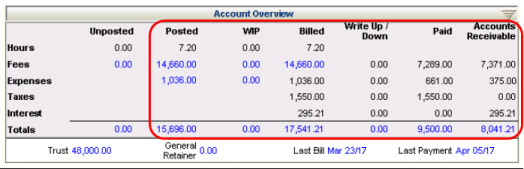
To refresh balances in Client and File Account Overviews and Indexes:
-
Ensure that all other Firm Members have logged out of Amicus Attorney.
 |
Note: We recommend that you backup the Amicus database. |
- Choose Office > Firm Settings and select Utilities under the Maintenance heading.
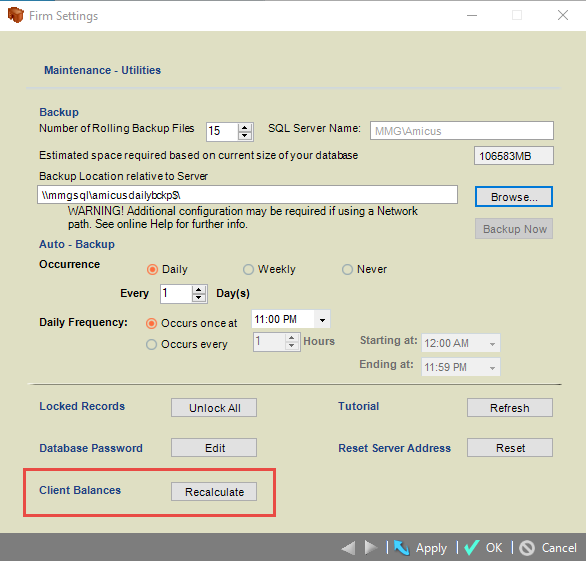
- Next to Client Balances, click Recalculate.
-
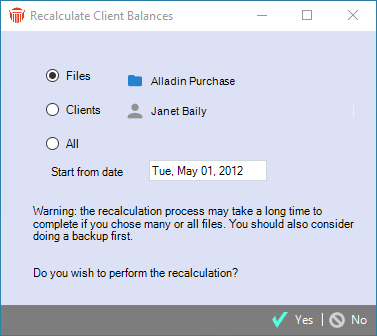
Select a radio button and choose which Files to have balances recalculated:
-
Selected Files
-
Files associated with selected Clients
-
All Files
-
-
If you choose the All option, all Files will be processed even if you do not have Firm File and Firm Contact security rights.
Note: Processing a large number of records might require several hours. If you are sure that the problem occurred only recently, consider specifying a recent start date from which to reprocess billing transactions. - Click Yes to begin the process. The following prompt displays if the number of Files and Clients records exceeds 300.
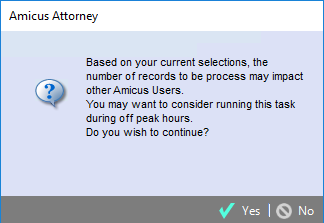
- You are informed that processing such a huge amount of records wil impact other Amicus Users and are asked to consider running this task during off peak hours.
- Click Yes to continue with the process of recalculating your client balances or click No to cancel the process.
Related Topics
