Files > Filling in General Information > Filling in General File details
 Filling in General File details
This topic covers:
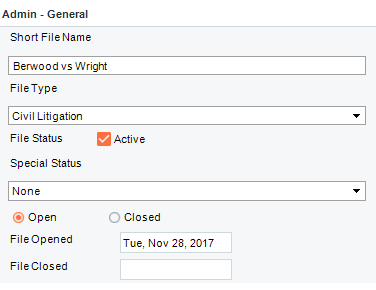
To fill in general file details open a File Details window and select Admin > General from the left side navigation pane.
- The bottom section of the brad view provides the general file detail fields.
 |
Note: The lists of File Types and Special Statuses can be customized for your firm. If you do not see the desired items, ask your Amicus Administrator to add them to the lists. |
Specifying the Short File Name
If necessary, you may edit the short name for the File in the Short File Name box. This name is like a nickname for the File, and should be as simple and memorable as possible. It must be unique across all Files.
Specifying the File Type
The File Type indicates a category of Files—e.g. Criminal, Family Law, and Taxation. When you use the Files Index, you can use the File Type information to control which Files are listed. File Type can also affect the available Custom Pages and Document Groups.
Specifying the File status
When you use the Files Index, you can use the File status information to control which Files are listed. To specify a File's status:
-
Select the Active checkbox if you are currently working on the File. Clear the checkbox if you are not.
-
Select a category in the Special Status list box if the File is one that you consider special for whatever reason.
|
Note: The list of Special Status categories can be customized for your firm. If you do not see the desired item, ask your Amicus Administrator to add it to the list. |
- Select the Open option if work on the File is still ongoing, or select the Closed option if all work is complete on the File. If you select the Closed option, the current date appears in the File Closed box.
|
Note: Marking a File as Closed does not delete it from your database. |
Setting the File opening and closing dates
The date on which the File was created appears in the File Opened box. Edit this date if necessary.
When you close a File (by selecting the Closed option), the current date appears in the File Closed box. Edit this date if necessary.
Related Topics