Clients > Looking up Clients > Using the Clients Index
 Using the Clients Index
The Clients Index window appears when you open the Clients module on the Billing side. It shows a list of your Clients arranged alphabetically by name.
This topic covers:
To open the Clients Index, click the Clients navigation button in the Navigation Pane. Or, open the People Index on the Attorney side and then click the Billing button to switch to the Billing side. If the Clients Index is already open, clicking Clients merely brings that window to the foreground—it does not open a second copy of the Index.
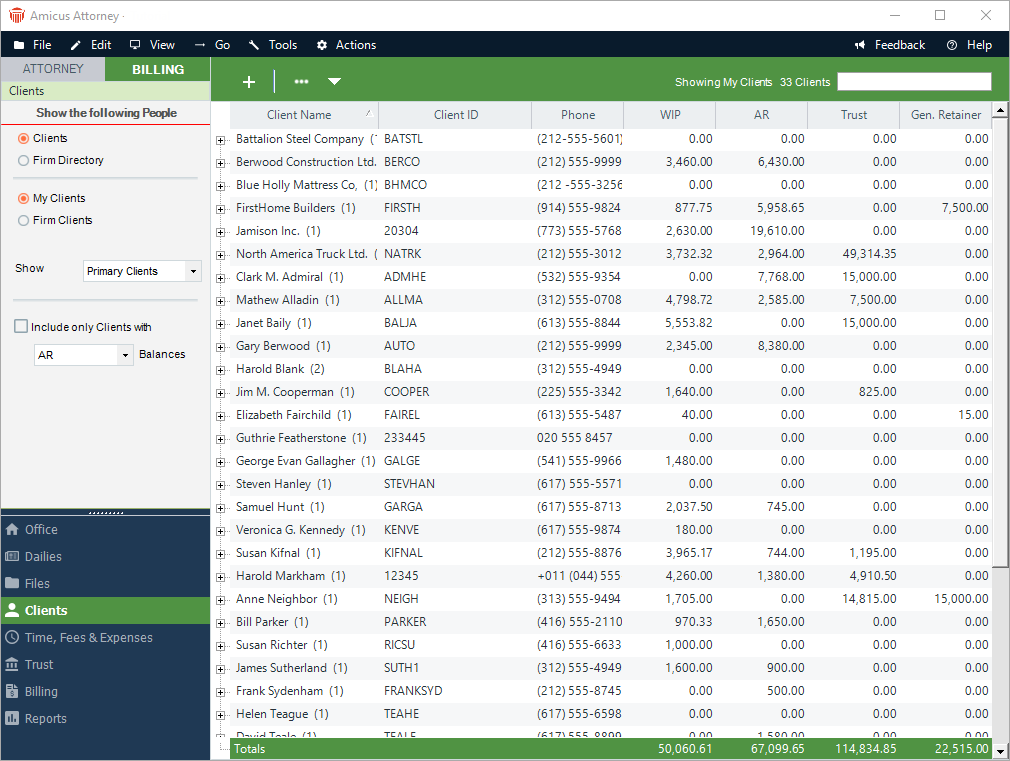
For Clients, the list shows information such as the name of the Client, the Client ID, the Primary phone number, the Client ID, the WIP and AR balances, and the Trust and General Retainer balances. Above the list, a title indicates how many Clients are shown in the current list. Only Clients are shown—those Contacts who have a Client-classified Role on one or more Files. To sort the list by the information in a column, click the column heading.
For the Firm Directory, the list shows the same information as on the Attorney side: the name of the Firm Member, the Company Name, the Primary phone number, and the Firm Groups to which they belong. You may filter the Firm Directory the same way as on the Attorney side.
Showing particular kinds of Clients
You may have a large number of Clients. Using options in the control panel, you can filter the list of Clients shown (assuming that you first select the Clients option to show only Clients, rather than selecting Firm Directory to show only Firm Members).
Depending on your assigned Security Profile or Firm Member Designations, you might have the following option: select Firm Clients to show all Clients regardless of whether you are assigned to them, or select My Clients to show only the Clients to which you are assigned.
Filter the list to show "All" Clients or only "Primary Clients" (those Clients who are Primary Client on one or more Files).
Optionally, filter the list to include only those Clients with non-zero balances for AR, WIP, both AR and WIP, or AR and/or WIP.
Client balances and totals
If filtering the list to show All Clients, the WIP, AR, Trust and General Retainer balances shown for each Client are the totals for all Files on which they have a Client-classified Role. If showing only Primary Clients, the balances shown for each Client are the totals for only those Files on which they are the Primary Client.
The totals shown at the bottom of the Clients Index are the totals for the Files on which the Clients you have filtered the list to are the Primary Client.
The balances and totals include only those Open Billable Files that you have permission to view.
Editing a Client's basic information or viewing a Client's details
As on the Attorney side, you can open the Person Edit dialog for a particular Client by selecting them, right-clicking on the list, and choosing Edit on the shortcut menu that appears. Or to view the Person Details record for a particular Client, double-click them in the list.
Expanding a Client row and listing their Files
In the Clients Index, the number of Open Billable Files each Client is on is shown in parenthesis to the right of their name. To expand the Client row and show these Files in a sublist, click the "+" icon to the left of their name.

For each File, the File name, Client Matter ID, Responsible Lawyer, and WIP, AR, Trust, and General Retainer balances are shown. You can double-click a File to open its Details dialog.
If the list is filtered to show All Clients, all Files on which the Client has a Client-classified Role are shown in the sublist (and those on which they are the Primary Client are shown in bold). If showing only Primary Clients, only those Files on which they are the Primary Client are shown.
Only those Files that you have permission to view are shown.
To collapse the File list for a Client, click the "-" icon to the left of their name.
Related Topics