Getting Started > Automated Backup Options
 Automated Backup Options
Administrators can kick off an update, and all the workstations in a firm are updated. This is also known as a Silent Start.
- To begin the process, click on Updates under the Maintenance section in Firm Settings.
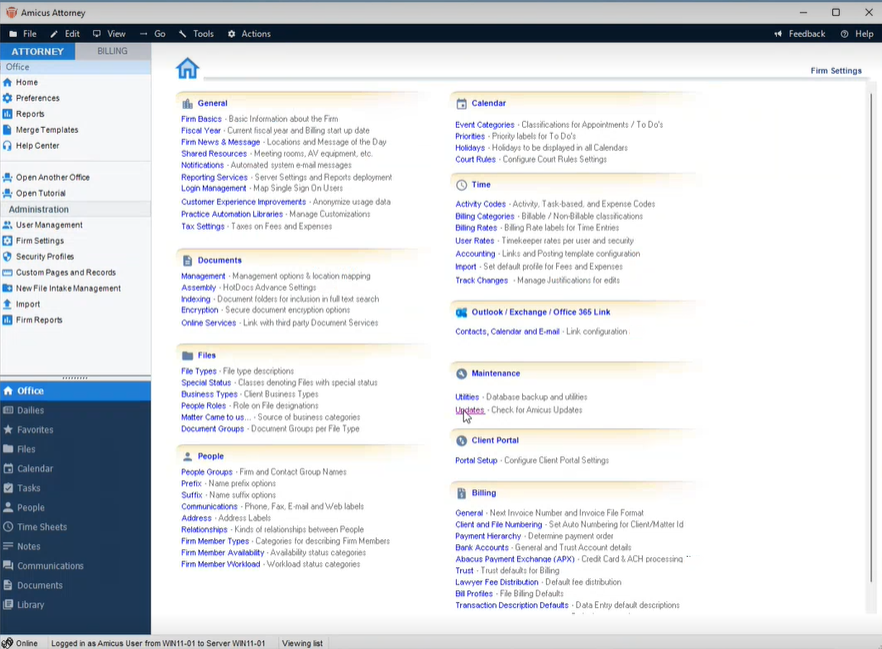
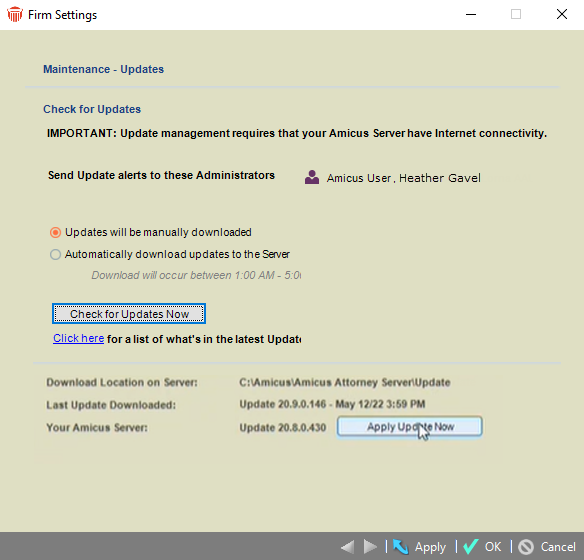
- If your firm has not been updated to Amicus 20.9, click the Apply Update Now button that displays in the Maintenance - Updates dialog.
- A prompt message informs you that the Amicus Server and all workstations will be updated to the lastest version, and all users will be notified before being automatically logged out from Amicus.
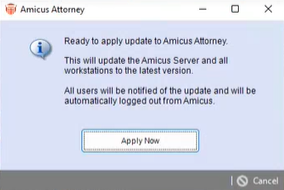
- Click Apply Now if you are ready to apply the update to Amicus Attorney. The update starts automatically.
- A toast message pops up at the bottom of all workstations informing users that their Administrator has scheduled an automatic update for Amicus Attorney. Users are asked to save their changes and log out of Amicus Attorney. If they do not, they are automatically logged out after the default time of 10 minutes.
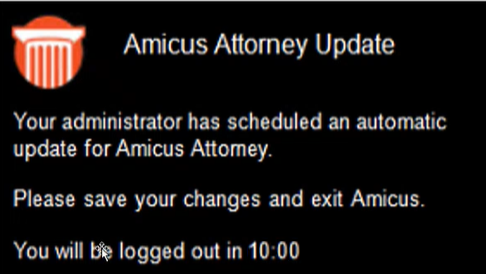

Note: The default times can be changed in the Configuration file.
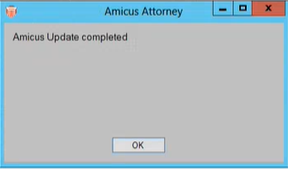
- After the update is complete, a prompt message displays notifying users that Amicus has been updated. Click OK.
- If a firm member did not have .NET Framework 4.8 installed on their workstation a prompt message displays informing them that .NET Framework has been updated, and they need to reboot their computer for the update to continue.
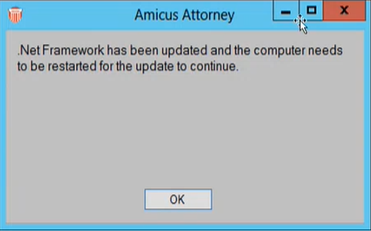
- Click OK, reboot your computer and restart Amicus Attorney.
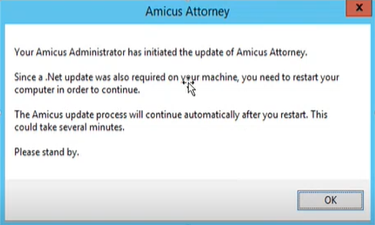
- If a firm member tries to log in without rebooting their workstation, another more detailed prompt message displays informing them that their Amicus Administrator has initiated an update of Amicus Attoeny, and that they need to reboot their computer for the update to continue.
Related Topics
