Customizing the Database > Designing New File Intake Forms > Designing a File Intake Page
 Designing a File Intake Page
This topic covers:
Designer dialog
When you create or edit a Page, the File Intake Page designer dialog appears, open to the first Basic Page (which includes the five default fields at the top).
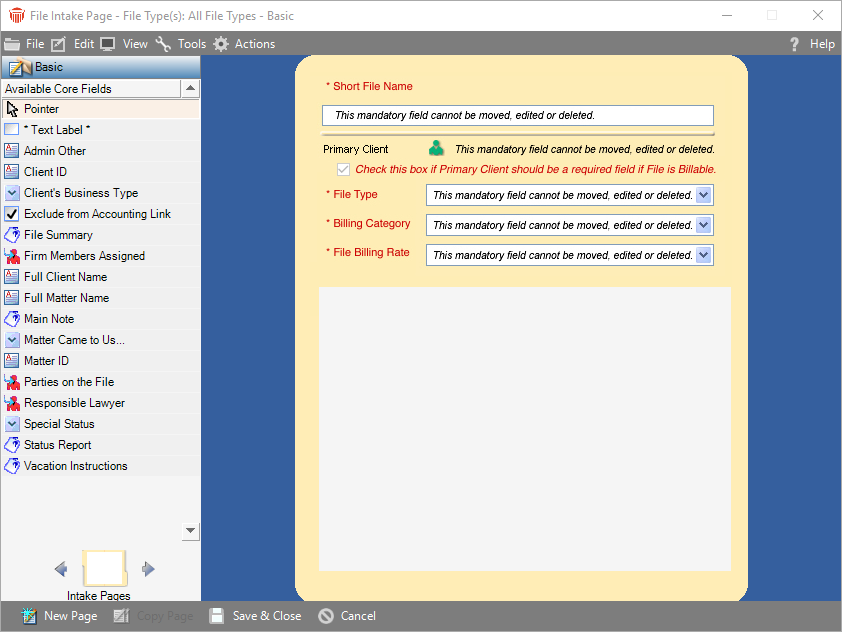
If desired, select the checkbox under Primary Client to make that field a required field on Intake Forms (if the new File is Billable).
Adding fields
To add a field to the Page, drag it from the list in the control panel at the left and drop it in the desired position at the right.
For a Basic Page, the control panel displays a list of core fields only.
For a File Type-specific Page, the control panel displays a list of core fields and a list of the applicable Custom Fields (only those Custom Fields that are defined across all File Types applicable to the Page).
The first Basic Page contains the five default fields shown in previous versions of Amicus, namely Short File Name, Primary Client, File Type, Billing Category, and File Billing Rate. You may add additional fields to the Page.
You may add the same field on different Pages of a File Intake Form. It will represent the same, single data field across those Pages. If a user changes the information in the field on one of the Pages, it will change on the other Pages as well.
-
A "Text Label" field is available for adding headings or other general descriptions on the Page.
-
Some fields might not be available, depending on your accounting system and link settings:
-
"Client ID" and "Matter ID" fields—if your accounting link is not set to use automatic numbering
-
"Exclude from Accounting Link" field—if relevant to your accounting link
-
"Task-Based Billing" and "TBB Code Set" fields—if your link is set to use Task-Based Billing
 |
Note: If using the Move Data in Field feature, to move data from one Custom Field to another, first ensure that none of the original or target Custom Fields are defined in any File Intake Pages at that time. |
Moving and resizing fields and Labels
By default, fields are assigned a label. A field and its label are separate elements-you can move, or resize one without the other.
-
To move a field or label, select it in the view and drag it to its new position.
-
To resize a field or label, select it in the view. Then select a graphic handle and drag it to increase or decrease the size.
-
Multiple fields and labels may be selected and then moved or resized together.
|
Note: The default fields on the first Basic Page cannot be rearranged or resized. |
Setting field attributes
To set the attributes of a field, right-click on it in the layout area and choose Show Field Attributes.
In the Field Attributes dialog that appears, you may change the following:
-
Tab Index—tabbing sequence of fields on the Page ("1" means first, "2" is next, etc.)
-
Required Field—force users to enter a value for the field before continuing in the New File Intake Form.
-
Four default core fields (Short File Name, File Type, Billing Category, and File Billing Rate) are set to be Required.
Deleting fields from a Page
To remove one or more elements from a Page, select them in the layout area and then either right-click and choose Delete Field or press the <DELETE> key. Removing fields from a New File Intake Form does not affect the availability of those fields in the File Details itself.
The Short File Name, Primary Client, File Type, Billing Category, and File Billing Rate fields cannot be deleted from the first Basic Page.
Related Topics
