Customizing the Database > Designing New File Intake Forms > Managing Pages
 Managing Pages in New File Intake Forms
This topic covers:
Management dialog
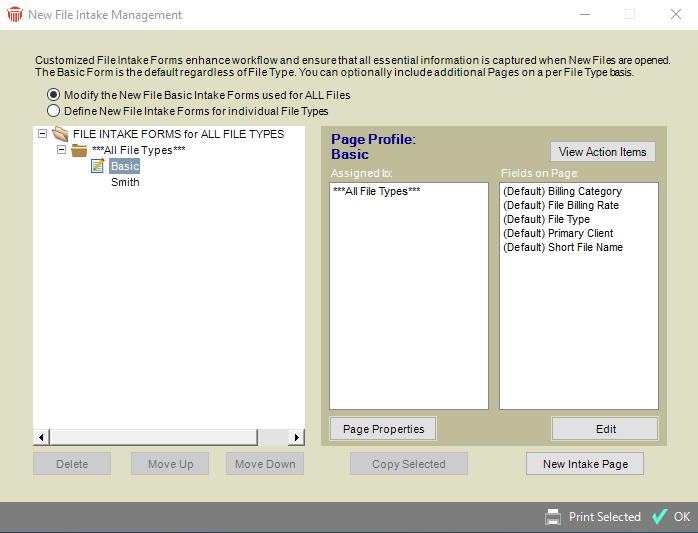
To configure Pages for New File Intake Forms, go to the Office module and choose New File Intake Management on the navigation list. The Management dialog appears, from which you can choose to create or edit Pages for Basic or File Type-specific Forms.
Basic Form and Basic Pages:
File Type-Specific Forms and Pages:
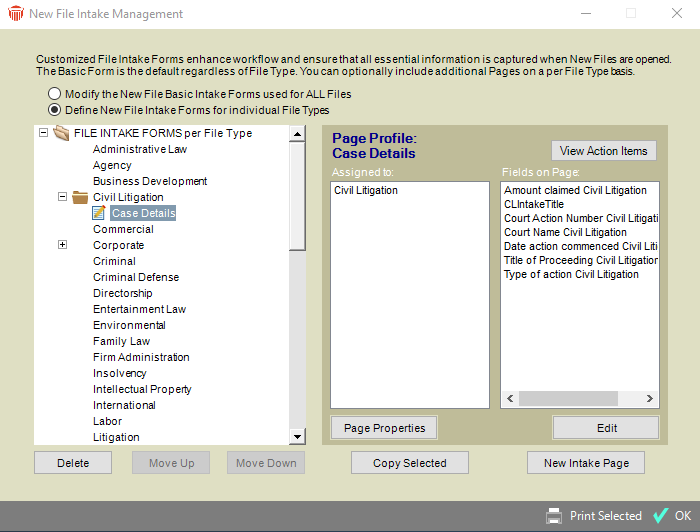
A navigation list of Pages grouped by File Type is shown at the left. For a selected Page, the list of File Types to which it is assigned and a summary list of its fields are shown at the right.
You may add a new Page, or select an existing Page to edit, resequence, copy, delete, or add/remove File Type assignments, as described below.
Creating a "blank" new Page
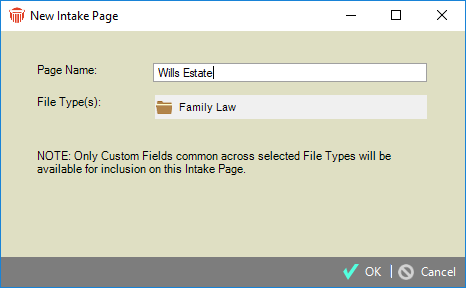
- To create a new, empty File Intake Page, select the type of Page (Basic or File Type-specific) and click New Intake Page.
-
In the New Intake Page dialog, specify the basic properties of the Page:
-
The Name that will be shown in Management lists, for convenient identification.
-
For a File Type-specific Page, specify the File Type(s) to which the Page applies.
-
-
Then click OK. For information about editing the design and properties of a Page, see Designing a File Intake Page.
Creating a new Page based on an existing one
To copy an existing File Type-specific Page for use on another File Type, select it in the New File Intake Management dialog and click Copy Selected.
Or, click Copy Page while displaying that Page in the File Intake Page designer dialog.
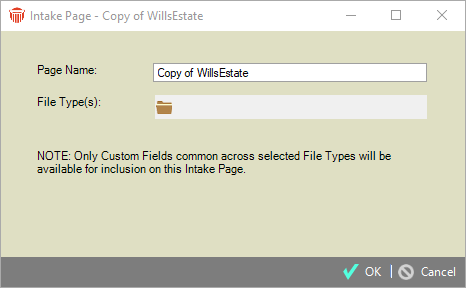
Specify the basic properties of the Page: the Page Name and the File Type(s) to which the Page applies. Then click OK.
 |
Note: Only those Custom Fields that are defined for all assigned File Types will be copied from the original Page to the new Page. |
Editing an existing Page
To edit a Page, select it in the New File Intake Management dialog and click Edit. The File Intake Page designer dialog appears. For information about editing the design and properties of a Page, see Designing a File Intake Page.
Changing the Page Name or File Type assignments on an existing Page
To change the name of a Page, or the set of File Types to which it is assigned, select the Page in the New File Intake Management dialog and click Add/Remove.
|
Note: A Page may be assigned to only those File Types for which all Custom Fields on that Page are defined. (A warning message will notify you before removing any inappropriate File Types from your list.) |
Deleting a Page
To delete a Page, select it in the New File Intake Management dialog and click Delete.
Or, click Delete while displaying that Page in the designer dialog.
If you delete a Page that is assigned to more than one File Type, you are given the option of deleting it for only the currently selected File Type or for all File Types.
Changing the sequence of Pages
To change the sequence of Pages, select a Page at the left in the New File Intake Management dialog and click Move Up or Move Down.
Related Topics
