Calendar > Adding a To Do > Assigning a Priority
 Assigning a Priority
This topic covers:
Select a priority from the Priority field's drop down list in the header section of the To Do's Event Details dialog.
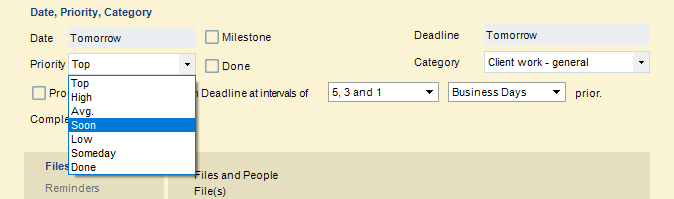
The Priority of a To Do (e.g. "Avg") is important because it determines where each To Do appears on your To Do list when you sort it by Priority.
If a To Do is urgent but has no actual due date, we recommend that you give it a Priority of "Top" instead of creating an artificial Deadline.
 |
Note: The labels of the Priorities can be customized for your firm. If you do not find the labels suitable, ask your Amicus Administrator to edit them. |
Someday To Do's
Select "Someday" if you do not want to schedule the To Do yet. A "Someday" To Do does not have a Date, Deadline, or Location, cannot have Reminders, and cannot be Repeating. It can be Linked as a Dependent Event, but not as a Master Event. It is not shown in the Day, Week, Date Range, and Month views, but can be seen in the "My Someday To Do's" list in the Lists view.
Progressive Priority
You can better manage your tasks by setting To Do's to have their Priority levels increase automatically, either the longer they remain on your list or as they near their Deadlines. You may still directly edit the Priority level of a To Do at any time.
Set the desired criteria for increasing the Priority level. The options available depend on whether or not the To Do has a Deadline:
- If the To Do does not have a Deadline—Select the frequency with which its Priority level should increase based on the number of days the task has been on your list.
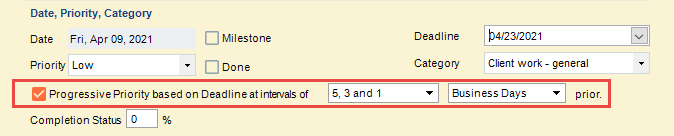
- For example, consider a "Low" Priority To Do with a start date of April 09 set to increase every 5, 3 and 1 days. Its Priority will automatically increase level-by-level as shown in the following table:
Date Change Rule Applied Priority April 9 (Start & Set) Low April 16 5 days on list Avg. April 21 8 days on list High April 22 9 days on list Top
The Progressive Priority feature is not available on Someday, Milestone, Repeating, or Done To Do's.
Assigning a Category
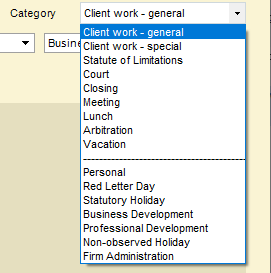
You may categorize To Do's so that you can later filter the Calendar views by Category. For example, you could see at a glance all of your general client work, or all of your firm administration tasks.
To assign a Category to the To Do, select it in the Category list box in the header section of the To Do's Event Details dialog.
|
Note: The lists of Categories can be customized for your firm. If you do not see the desired items, ask your Amicus Administrator to add them. |
Colors
Your Amicus Administrator might have assigned colors to one or more Event Categories. Any To Do's assigned to those Categories will appear in the corresponding color in Calendar and Tasks module views, Event Details, and the Event lists of File and People Details. The To Do's will have either a colored background or a colored Done box, depending on the view.
Assigning a Completion Status
To help manage the To Do's, you can indicate how complete a To Do is by typing a percentage in the Completion Status box in the header section of the To Do's Event Details dialog.
Related Topics