Clients > Working with a Client's details > Working with balances and billing options
 Working with balances and billing options
This topic covers:
To view summary balances for a Client or work with their billing options, open the Billing-side Client Details window and choose Balances on the left-side navigation bar.
The upper section of the Balances view shows combined balances for all Files on which the Client is the Primary Client and you have access to.
If you want a brief comparison of balances for the individual Files on which they are the Primary Client (or have a Client-classified Role), instead expand the Client's row in the Client Index—see Using the Clients Index.
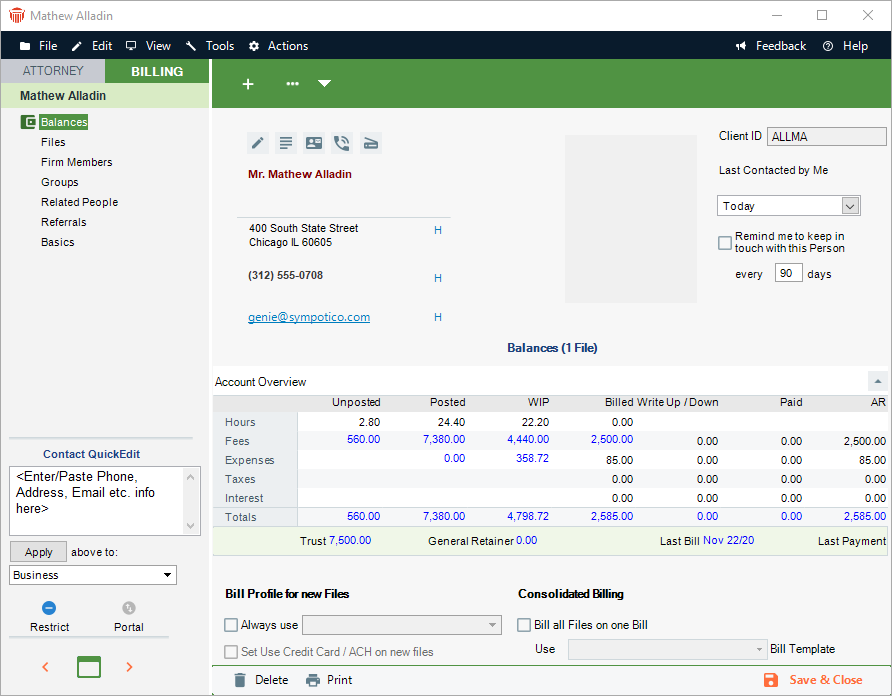
Account Overview
The table shows current balances for the File(s):
-
Unposted—unposted hours and Fees (excluding any Non-Billable or No Charge Time).
-
Posted—posted, unbilled hours, Fees, and Expenses. The hours and fees include only "Bill" items, and excludes any Non-Billable or No Charge items. Items on a Draft or Final Bill are included.
-
WIP (Work In Progress)—unbilled hours, Fees, and Expenses. The hours and fees include only "Bill" items, and excludes any Non-Billable or No Charge items. Items on a Draft or Final Bill are included.
-
Billed—billed hours, Fees, Expenses, Taxes, and Interest. Posted Interest is included, memo interest is not. Fees, Expenses, and Taxes reflect any adjustments made at the time of billing or later via Write Ups/Downs. Only items on posted Bills are included.
-
Write Up/Down—Write Up/Down amounts for Fees, Expenses, Taxes, and Interest.
-
Paid—paid Fees, Expenses, Taxes, and Interest.
-
Accounts Receivable—AR balances (billed but not-yet-paid) for Fees, Expenses, Taxes, and Interest.
Below the table are shown additional balances and dates for the File:
-
Trust balance
-
General Retainer balance
-
When any of the Files was last billed (AR date of the last Bill)
-
When a Payment against a Bill was last received on the File (excluding receipt of General Retainer or Trust)
Drilling down to detail information
If an account overview value appears underlined when you move the cursor over it, you can drill down to related details. For example, click the WIP Fees amount to display the Time Index filtered to show unbilled Time Entries for this Client. Or click the Last Billed date to display the Billing Index filtered to show Bills for this Client.
Client billing options
The following billing options can be set in the bottom section of the Balances view:
-
Bill Profile—Choose whether to assign a default Bill Profile to all new Files on which this Client is the Primary Client, and select the particular Profile in the pull-down list. For more information, see Filling in billing settings for a File.
-
Consolidated Billing—Choose whether, when Mass Billing, to consolidate Bills for all Files (on which this Client is the Primary Client) onto a single Bill (with a single Invoice Number). This also determines, when mass creating Reminder Statements, a single Statement for all applicable Files for this client will be created.
If consolidating Bills and Reminder Statements for this Client, select the Bill Template to be used.
Templates can be created and edited from the Reports module. To see a sample printout for your selected Template, click Preview.
Related Topics